In This Tutorial
1 What is Claude Code?
Claude Code is Anthropic's AI coding assistant that can read, write, and execute code in your development environment. When combined with CLAUDIUS, Claude Code can directly control Unreal Engine through natural language commands.
Instead of manually writing JSON commands or clicking through menus, you can simply tell Claude what you want:
CLAUDIUS v3 generates {Project}/Claudius/CLAUDIUS.md — a curated, per-project command index pulled into Claude Code's context via @Claudius/CLAUDIUS.md in your project-root CLAUDE.md. Only enabled commands get full documentation, so Claude sees a focused surface (~100 commands for a typical preset) instead of the full ~230-command catalog.
2 Setting Up the Connection
Step 2.1: Install Claude Code
If you haven't already, install Claude Code from Anthropic. It works as a VS Code extension or standalone application.
Step 2.2: Open Your Project
Open your Unreal project folder in Claude Code. Make sure CLAUDIUS is installed and the editor is running with your project loaded.
# Open your project folder in Claude Code
cd C:\Projects\MyUnrealProject
claude-code .

# Or in VS Code with Claude extension:
code C:\Projects\MyUnrealProject
Step 2.3: Run the Setup Wizard (or Link Manually)
v3 doesn't copy a CLAUDE.md over your project root. Instead, the plugin generates {Project}/Claudius/CLAUDIUS.md as its index, and you opt in by adding one line to your own CLAUDE.md:
<!-- CLAUDIUS: pulls in the auto-generated command index. Safe to move or wrap in your own text. -->
@Claudius/CLAUDIUS.md
The fastest way to get this wired up is the setup wizard, which handles preset selection, policy, and the link in one flow:
{
  "id": "setup",
  "category": "config",
  "command": "run_setup",
  "parameters": {}
}
See The Setup Wizard for the full step-by-step. If you only want the link without running the wizard:
{
  "id": "link",
  "category": "config",
  "command": "link_user_claude_md",
  "parameters": {}
}
This command is idempotent — safe to call twice. It creates a minimal CLAUDE.md if you don't have one, appends the reference line if you do, or no-ops if it's already linked.
v2 copied a static CLAUDE.md over your project root, which broke users who already had their own. v3 owns its own file and never touches yours — the include line is the only modification, and only if you say yes.
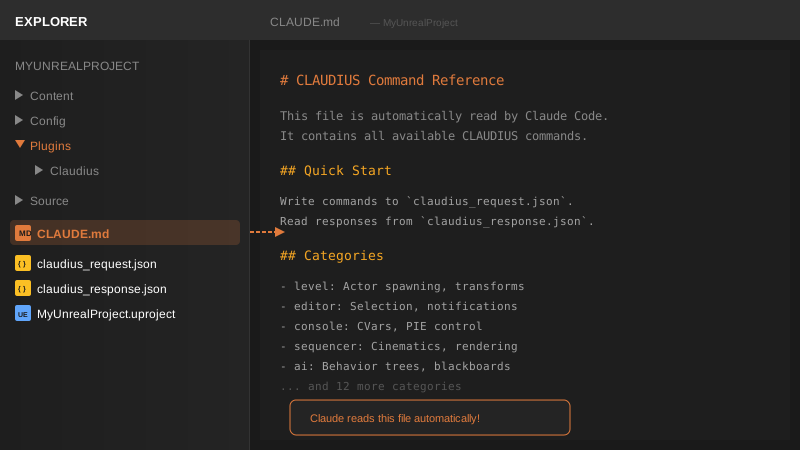
CLAUDE.md with the @Claudius/CLAUDIUS.md include, and Claudius/CLAUDIUS.md alongside it.Step 2.4: Test the Connection
Ask Claude to verify the setup by listing actors:
If Claude doesn't recognize CLAUDIUS commands, check these common issues:
- No
@Claudius/CLAUDIUS.mdreference in yourCLAUDE.md– runconfig.link_user_claude_mdto insert it safely Claudius/CLAUDIUS.mddoesn't exist – the wizard never finished. Runconfig.regenerate_claude_md- Unreal Editor not running – make sure the editor is open with your project loaded
- Plugin not enabled – check Edit > Plugins and ensure CLAUDIUS is enabled
3 Understanding CLAUDIUS.md (and CLAUDE.md)
v3 splits the documentation into two files with very different roles:
{Project}/CLAUDE.md– your file. Project-specific notes, instructions, conventions. CLAUDIUS only ever appends one reference line; everything else is yours.{Project}/Claudius/CLAUDIUS.md– our file. Auto-generated from the command registry plus your project's curation config. Rewritten on every enable/disable. Never hand-edit.
Claude Code reads CLAUDE.md at the project root. The @Claudius/CLAUDIUS.md reference tells it to also pull in our generated index, so Claude sees both: your project-specific guidance and the curated CLAUDIUS surface.
The generated CLAUDIUS.md contains:
- Your profile – workflow, experience, AI tool, token budget
- Curation cheatsheet – how to enable / disable / load presets
- Full index – every command with
[x]/[ ]enabled flag and one-line description - Enabled detail – full parameters and examples for the commands you've actually turned on
- Installed skill packs – plus their workflow tags and command counts
# CLAUDIUS Command Reference

## File-Based Communication
Write commands to `claudius_request.json`, responses appear in `claudius_response.json`.

## Command Format
```json
{
  "command_id": "unique_id",
  "category": "level|editor|console|...",
  "command": "command_name",
  "params": { ... }
}
```

## Level Commands

### spawn_actor
Spawns an actor in the current level.

Parameters:
- class_path (string, required): Actor class path
- location (object): {x, y, z}
- rotation (object): {pitch, yaw, roll}
- actor_label (string): Display name

Example:
```json
{
  "command_id": "spawn_1",
  "category": "level",
  "command": "spawn_actor",
  "params": {
    "class_path": "/Script/Engine.PointLight",
    "location": {"x": 0, "y": 0, "z": 300}
  }
}
```
Claude Code reads CLAUDE.md automatically when you open the project. You don't need to tell Claude about it—just start asking for things and Claude will know what commands to use.
4 Natural Language Commands
With CLAUDIUS + Claude Code, you can express commands naturally. Claude translates your intent into the correct JSON format. Here are examples across different categories:
Level Operations
// You say:
"Spawn a point light at 0, 0, 500"

// Claude writes:
{
  "command_id": "spawn_light_001",
  "category": "level",
  "command": "spawn_actor",
  "params": {
    "class_path": "/Script/Engine.PointLight",
    "location": { "x": 0, "y": 0, "z": 500 }
  }
}
Editor Operations
// "Select the actor named PlayerStart"
{ "category": "editor", "command": "select_actor", "params": { "actor_name": "PlayerStart" } }

// "Take a screenshot of the viewport"
{ "category": "viewport", "command": "take_screenshot", "params": {} }

// "Compile all blueprints"
{ "category": "build", "command": "compile_blueprints", "params": {} }
Complex Multi-Step Tasks
Claude can chain multiple commands together for complex operations:
5 Real-World Examples
Example 1: Setting Up a Character Test Scene
Example 2: Debugging AI Behavior
Example 3: Asset Pipeline
6 Tips & Best Practices
Be Specific with Positions
When specifying locations, use concrete numbers. Claude understands coordinates in Unreal's coordinate system (X forward, Y right, Z up).
Good: "Spawn a light at 0, 0, 300"
Vague: "Put a light somewhere above the scene"
Use Actor Labels
Ask Claude to name actors when spawning them. This makes it easier to reference them later.
Chain Related Commands
Don't hesitate to ask for multi-step operations. Claude will execute them in the correct order and report the results.
Check Responses
Claude will tell you if a command failed. If something doesn't work, ask Claude to check the response file for error details.
CLAUDIUS commands modify your level! Use version control (Git, Perforce) so you can revert changes if needed. Consider testing in a separate level before modifying important content.