In This Tutorial
1 Prerequisites
Before installing CLAUDIUS, make sure you have the following:
-
Unreal Engine 5.4 or later
CLAUDIUS supports UE 5.4, 5.5, 5.6, and 5.7. Earlier versions are not supported.
-
A UE5 Project
You'll need an existing project or create a new one. Any template works.
-
Epic Games Launcher
CLAUDIUS is installed via the Epic Marketplace, so you'll need the launcher.
v3 introduces a curated command surface — only the commands relevant to your project type are loaded into the AI's context. The plugin generates Claudius/CLAUDIUS.md as its index and never overwrites your project's CLAUDE.md. You opt in with one line: @Claudius/CLAUDIUS.md.
2 Installing CLAUDIUS
Step 2.1: Download from Epic Marketplace
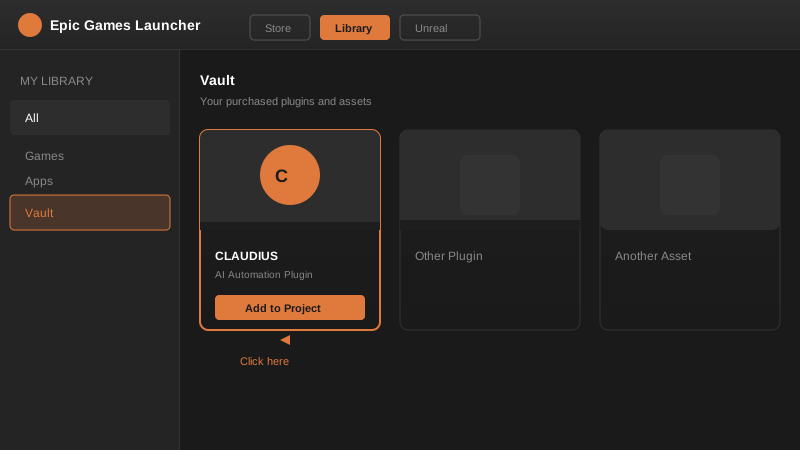
After purchasing CLAUDIUS from the Epic Marketplace, open the Epic Games Launcher and navigate to your Library.
Step 2.2: Add to Your Project
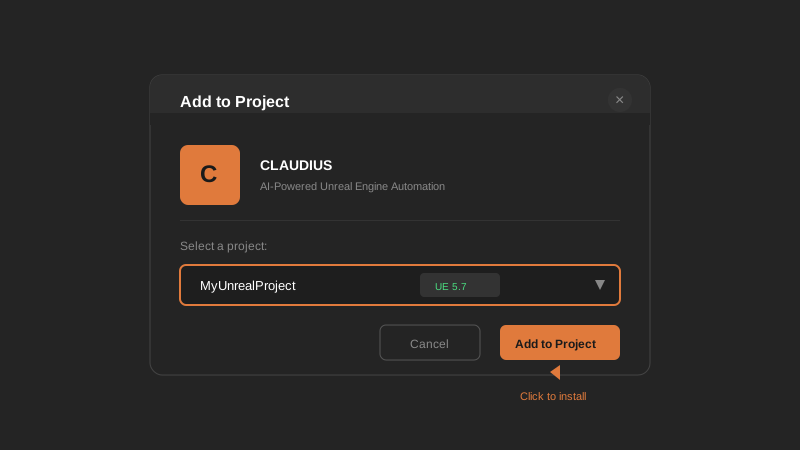
Find CLAUDIUS in your Vault and click "Add to Project". Select your target project from the dropdown.
Step 2.3: Enable the Plugin
Open your project in Unreal Engine. Go to Edit > Plugins, search for "CLAUDIUS", and ensure it's enabled. Restart the editor if prompted.
// CLAUDIUS is added to your .uproject file
{
  "Plugins": [
    {
      "Name": "Claudius",
      "Enabled": true
    }
  ]
}
After enabling the plugin, you'll see "CLAUDIUS initialized" in the Output Log. This confirms the plugin is running and ready to receive commands.
Step 2.4: Verify the Plugin is Running
Open the Output Log (Window > Developer Tools > Output Log) and filter for Claudius. You should see something like this:
# Successful startup looks like this
LogClaudius: Claudius Subsystem Initialized
LogClaudius: HTTP server listening on 127.0.0.1:8080
LogClaudius: Watching .../Plugins/Claudius/claudius_request.json
The plugin also creates Plugins/Claudius/claudius_request.json on first run. This is the file you'll use to send commands.
Unlike v2, CLAUDIUS v3 does not copy a CLAUDE.md to your project root. It writes its own index to Claudius/CLAUDIUS.md instead. Your existing CLAUDE.md (if any) is left completely alone. You'll opt in to the linkage in step 5.
3 Running the Setup Wizard
The wizard handles preset selection, auto-enable policy, and CLAUDE.md linking in one flow. Each step's response includes a next_call field telling you exactly what to send next, so it's easy to script.
Step 3.1: Start the Wizard
Open Plugins/Claudius/claudius_request.json and replace its contents with this:
{
  "id": "setup",
  "category": "config",
  "command": "run_setup",
  "parameters": {}
}
Save the file. Within 500 ms claudius_response.json updates with the wizard's first prompt:
{
  "command_id": "setup",
  "success": true,
  "output": {
    "prompt": {
      "step": "welcome",
      "question": "Welcome to CLAUDIUS v3.0...",
      "choices": ["yes", "skip"],
      "step_index": 0,
      "total_steps": 8,
      "next_call": "config.answer_setup { step: \"welcome\", answer: \"<choice>\" }"
    }
  }
}
Step 3.2: Walk Through the 8 Steps
Each subsequent step is sent the same way. The general shape:
{
  "id": "wizard",
  "category": "config",
  "command": "answer_setup",
  "parameters": {
    "step": "welcome",
    "answer": "yes"
  }
}
The eight steps and their choices:
1. welcome         → yes / skip
2. workflow        → fps / platformer / level_design / animation / open_world / general
3. experience      → bp_only / bp_cpp / engine_dev / mixed
4. ai_tool         → claude_code / cursor / codex / other
5. token_budget    → minimal / balanced / maximal
6. auto_enable     → ask / always / never
7. claude_md_link  → yes / skip
8. confirm         → yes / no
If you're using Claude Code, just say "start CLAUDIUS setup". Claude will run the wizard end-to-end, ask you each question conversationally, and write the answers for you.
Step 3.3: Final Confirmation Response
When you answer yes to the confirm step, the response includes everything you need to know:
{
  "success": true,
  "output": {
    "result": "complete",
    "preset_applied": "fps",
    "auto_enable_policy": "ask",
    "enabled_commands": 105,
    "claudius_md_path": ".../Claudius/CLAUDIUS.md",
    "user_claude_md_path": ".../CLAUDE.md",
    "user_claude_md_state": "linked",
    "claude_md_linked_now": true,
    "estimated_tokens": 7345,
    "profile": { "workflow": "fps", ... }
  }
}
4 Smoke-Testing a Real Command
Send a real command to confirm the curated surface is wired up:
{
  "id": "list",
  "category": "level",
  "command": "list_all_actors",
  "parameters": { "max_results": 10 }
}
You should see "success": true with up to 10 actors in the response. If you instead see "command_disabled", the preset you picked doesn't include this command. Either let Claude surface the suggested enable call (default auto_enable_policy: ask), or load a broader preset:
{
  "id": "preset",
  "category": "config",
  "command": "load_preset",
  "parameters": { "preset": "everything" }
}
5 Linking Your CLAUDE.md
If you said yes to claude_md_link in the wizard, your project-root CLAUDE.md already has this single line in it:
<!-- CLAUDIUS: pulls in the auto-generated command index. Safe to move or wrap in your own text. -->
@Claudius/CLAUDIUS.md
That's the entire integration. We never touch the rest of your CLAUDE.md, even on regenerate. If you skipped this step or want to do it later, run:
{
  "id": "link",
  "category": "config",
  "command": "link_user_claude_md",
  "parameters": {}
}
This command is idempotent — safe to call twice. It returns state_before and state_after (missing, linked, or not_linked) so you can see exactly what changed.
v2 copied a static CLAUDE.md over your project root. v3 does not. If you upgraded an existing project, the v3 plugin won't touch your file — but it also won't appear in Claude's context until you add the @Claudius/CLAUDIUS.md reference line. Run config.link_user_claude_md and we'll insert it for you safely.
6 Next Steps
You're up and running. Here's what to explore next, in order of likely value:
- Drive it from Claude Code: open your project folder in Claude Code and ask it to do real work. The Claude Code Integration tutorial covers v3 specifics.
- Understand the curation system: presets, enable/disable, and the ask-before-enable policy are all covered in Curation & Presets.
- Re-run the wizard any time: see The Setup Wizard for the full step-by-step reference, including what each choice changes under the hood.
- Add your own commands: drop a Python file with
# @claudiusheaders into{Project}/Claudius/UserCommands/— see Skill Packs & User Commands. - Animation studio workflows: if you're doing shot-based work (technical explainers, forensic reconstructions, historical recreations), see The Animation Studio Preset.
- Switch to HTTP for sub-50 ms latency: the HTTP API Deep Dive covers the same JSON shape sent via
POST. - Browse the full catalog: open
{Project}/Claudius/CLAUDIUS.mdafter the wizard runs — every command is listed with its enabled flag.
Claude Code Integration walks through the natural-language flow once setup is done, including how the @Claudius/CLAUDIUS.md include works in practice.